BlogBatuta
One keyboard for the Mac and the Linux box on my desk
Two computers, two keyboards, and a hand that always reaches for the wrong one. The ways to use a Mac's keyboard and mouse on Linux, and the one I built.
By Roberto Ríos5 min read
The short answer. Between Macs and iPads, Apple's Universal Control already does it. For Linux you need a KVM switch, which is a box, or an app that carries the keyboard over the network, like Deskflow. Batuta (free, I built it) is one of those apps: the Mac conducts, and the Linux computer, or another Mac, follows.
There's a Mac on my desk and a Linux computer next to it. Each has its own keyboard and mouse. I'm typing on the Mac, glance at the other screen, start typing, and the words land in the wrong place. I switch keyboards. The shortcut in my fingers isn't the one this keyboard knows. Back to the first.
Each switch takes a second, but it happens many times a day. And the desk holds two keyboards where one would do.
The options
A KVM switch. A box with a button: keyboard and mouse go to whichever computer you pick. It works with any system and installs nothing. In return: cables, a button or a hotkey every time, and no shared clipboard.
Apple's Universal Control. You move the pointer from one Mac to another Mac or an iPad across the edge of the screen. If everything is Apple and shares one Apple Account, there's nothing to install. A Linux computer can't join. Neither can a work Mac on the company's account.
A software KVM. An app on each computer carries the keyboard and mouse over the network. Deskflow is free and open source; Synergy, a paid product, is built on it. They work across Windows, Mac and Linux, share the clipboard, and have years of use behind them.
If you already use one and it works for you, keep it. I was missing four things, together and without touching a config file.
What I was after
The Mac in charge. The Linux computer booting up and letting me type its password with the Mac's keyboard, before I log in. Its sound in the headphones I'm already wearing. And, whatever happened on the other computer, the keyboard always coming back to the Mac.
So I built Batuta, a macOS menu bar app. Batuta is Spanish for a conductor's baton.
How it works
You install Batuta on the Mac and give it two permissions, Accessibility and Input Monitoring. They're what let it carry the keyboard and mouse.
Then you add each computer. For Linux, Batuta gives you one line to paste in its terminal. It downloads the client, checks it arrived intact, and asks for the six-digit code the Mac shows. Last, it asks for your admin password, because it installs the part that runs at the login screen. That code is used once: from then on, each computer accepts only the Mac it knows, and the connection is encrypted.
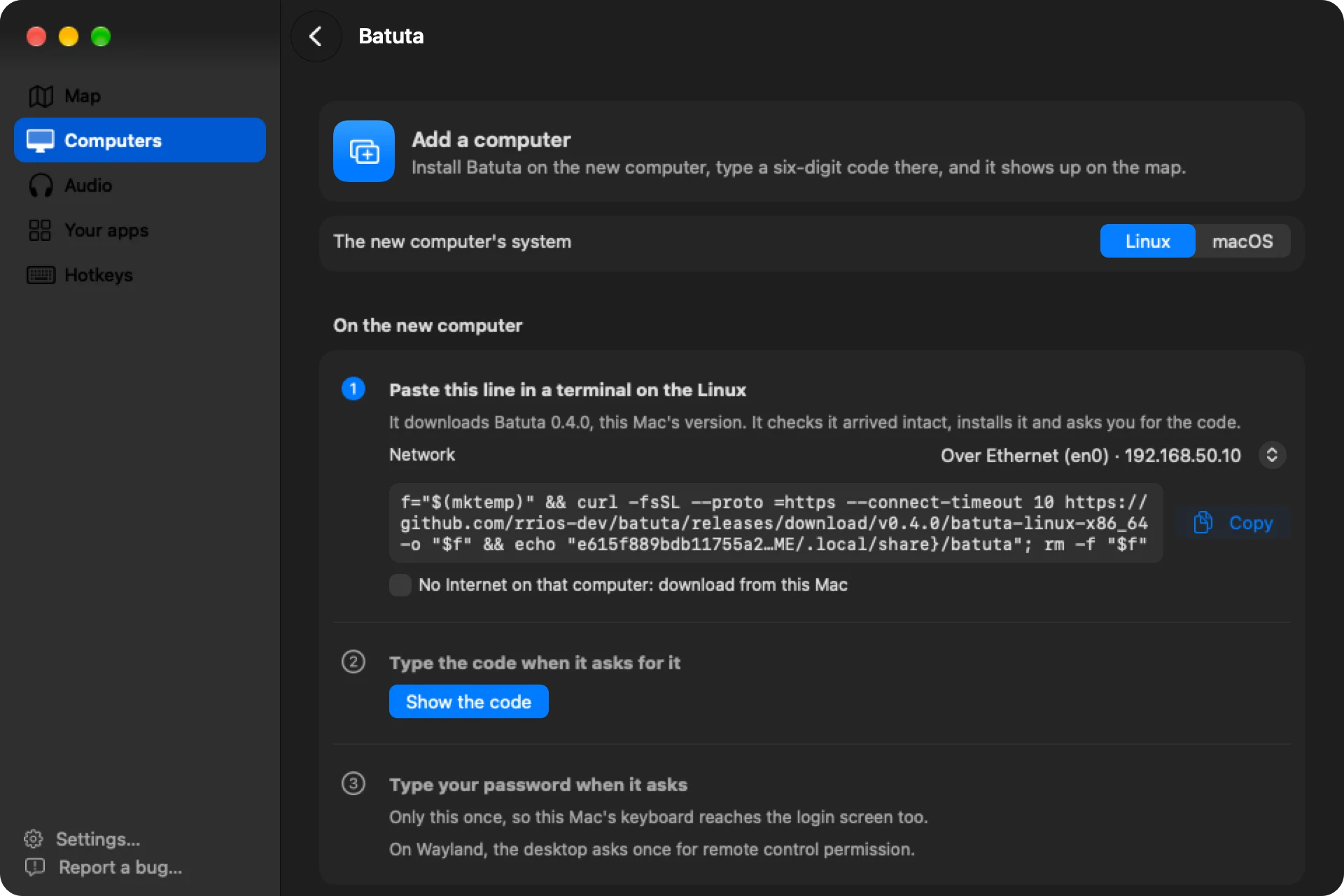
On another Mac, you install Batuta the same way, and the first time it asks whether that Mac leads or follows.
Then you place the screens on a map, the way they sit on your desk. The pointer crosses to the other computer the moment it reaches the edge. If you'd rather use the keyboard, ⌃⌥⌘ and the computer's number.
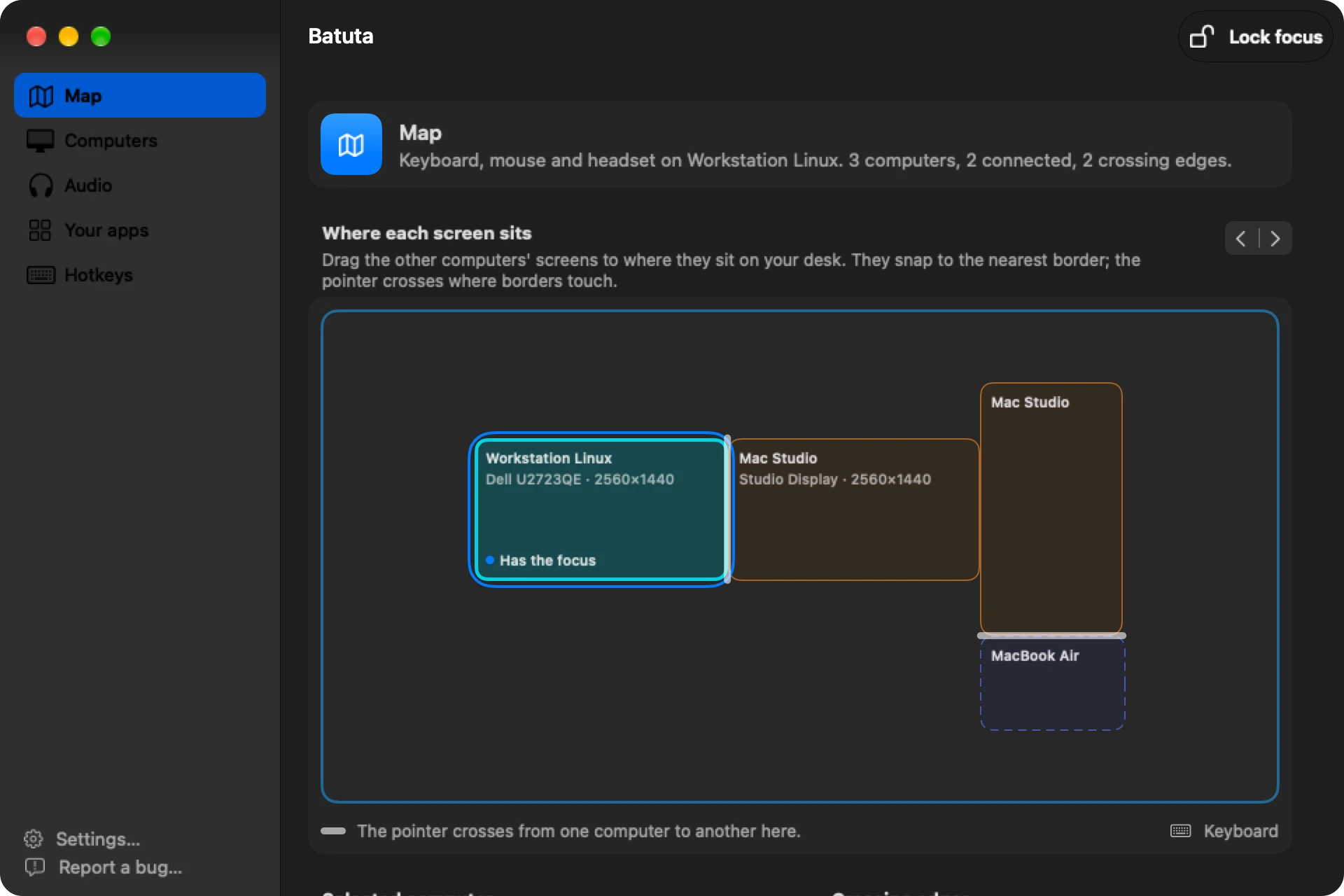
What happens on the other side
Linux, from the moment it boots. The client starts with the system, so you type the login screen's password on the Mac's keyboard. It works on X11 and Wayland. If the client fails, it restarts on its own.
The clipboard, both ways. Copy on Linux and paste on the Mac, or the other way round. Text and images. Anything a password manager marks as concealed stays where it is.
The sound, in your headphones. What plays on Linux, you hear on the Mac. With several Linux computers you can hear them all at once, each at its own volume, and a limiter keeps two at once from distorting. The Mac's microphone joins Linux calls only when you switch it on.
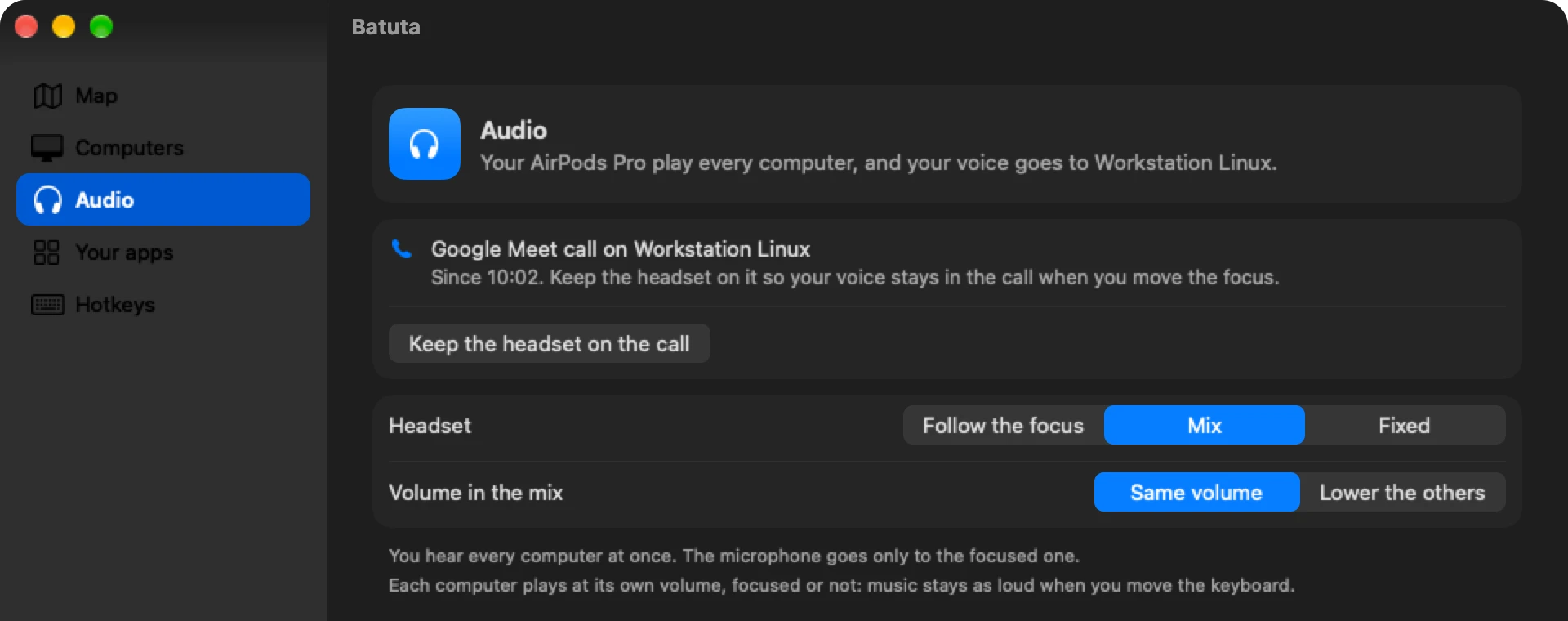
Another Mac, every key included. Spaces, Mission Control, ⌘⇥: system shortcuts arrive whole. With a Mac, for now, Batuta carries the keyboard and mouse; the clipboard and sound are Linux's.
The way back, always within reach
Handing your keyboard to another computer has one risk: that computer hangs while it has it. Batuta handles that from the Mac.
- ⌃⌥⎋ brings you back to the Mac. The Mac listens for it, not the other computer, so it works even when that one doesn't answer.
- If a computer goes half a second without a word, the keyboard and mouse come back on their own. Any keys you were holding are released.
- While you type a password on the Mac, the keyboard won't leave it.
What you share stays on your network
Batuta has no account. What you share goes from one computer to the next on your local network, encrypted, through no server. It doesn't write what you type, copy or hear to disk. Usage statistics are sent only if you agree.
What it doesn't do
- The Mac in charge needs macOS 26 and Apple Silicon. An Intel Mac can't lead.
- The Linux computer must be x86-64, with systemd. Desktops like GNOME or KDE Plasma. Not a Raspberry Pi or an ARM laptop.
- No Windows. On either side.
- With another Mac, keyboard and mouse only, once you're logged in.
- Your local network only. It won't drive a computer in another house.
- The Linux client updates with a line. The Mac updates in one click; Linux, with the line its page in Batuta gives you.
- The source isn't public. What you download is the signed, notarized app.
If every computer you own is Apple and shares one account, Universal Control already has you covered. If there's a Linux box on your desk, or a Mac on another account, and you want yours to lead, Batuta is at batuta.rrios.dev. It's free, and I use it at this same desk.