BlogÁmbar
How to find that Mac screenshot when all you remember is one word
You didn't lose it: it was never a file. Why that happens, what macOS already gives you, and how to search for it by what it says.
By Roberto Ríos4 min read
The short answer. If you took it with ⌘⌃⇧4, the screenshot went straight to the clipboard and was never saved anywhere: the moment you copied something else, it was gone from your Mac. To stop it happening again, save it as a file with ⌘⇧4, or use a clipboard history that reads the text in images, like Ámbar (free; I made it).
Tuesday, 10:14. "Hey, can you send me the order number for that return?"
You definitely had it in front of you. You screenshotted the confirmation, pasted it into a chat and moved on. Three weeks later you remember the shop and the word "Return" in huge letters. That's it.
Desktop: nothing. Photos: nothing. Spotlight: a few emails, a PDF from 2023 and a note that has nothing to do with anything.
Relax: you didn't lose it. It was never a file.
Why it's nowhere to be found
Your Mac has two shortcuts for screenshots, and they look far too alike:
If you paste screenshots into chats a lot, you end up using the second one, because it doesn't fill your Desktop with files named like serial numbers. It's the tidy shortcut… and exactly the one that makes the screenshot evaporate: it lives on the clipboard until you copy something else. After that it only exists wherever you pasted it, if you can remember where that was.
And even if you had saved it, it would be named after a date. Searching by name is useless: you need to search for what it says.
What macOS can already do (more than you'd think)
Before you install anything, this is already on your Mac:
- Live Text. In Preview, Photos or Quick Look you can select and copy the text in any image. Great when the image is already in front of you.
- Spotlight searches text inside the photos in your library. If the screenshot ended up in Photos, searching for a word in it may well work.
- Clipboard history in Spotlight (macOS 26). Since macOS Tahoe, Spotlight can keep what you copy: ⌘Space, then ⌘4. You turn it on in System Settings → Spotlight.
If your screenshots end up in Photos, or you're after some text you copied a little while ago, that may be all you need. The trouble is Tuesday's case:
Live Text reads the image, but only once you've opened it. Spotlight indexes your photo library, and your screenshot never made it in. And Spotlight's clipboard history is built for recent things; Apple doesn't document it searching the text inside the images it keeps, either.
The fix I built myself: Ámbar
That gap is exactly why I built Ámbar, a clipboard history app for macOS. It's free and open source, and I'm telling you it's mine so you can read the rest with your guard up.
The idea fits in one line: every image you copy is read right after you copy it. Ámbar uses Vision, macOS's own text recognition, and stores what it finds alongside the rest of your history. It's on by default: nothing to name, nothing to file.
You can try the idea right here:
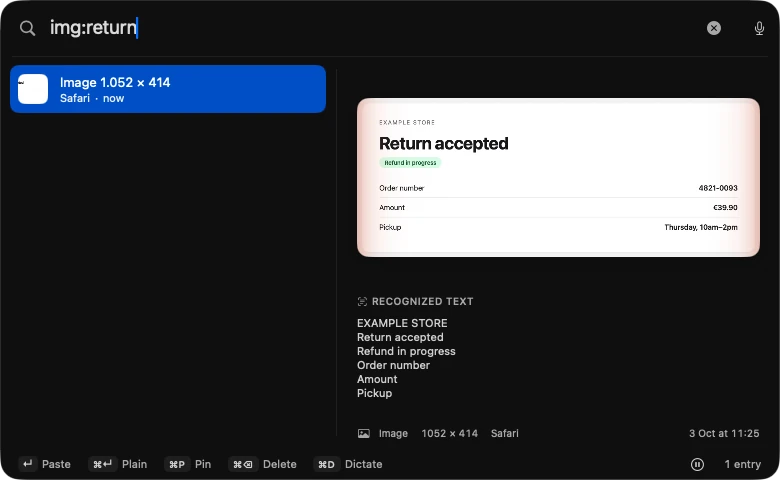
With Ámbar, Tuesday would have gone like this:
- ⌘⇧V. The panel opens with everything you've copied: text, links, colours, files, and screenshots with thumbnails.
- Type "return" (or
img:return, if you only want images). - The screenshot from three weeks ago shows up, even though the word only existed inside the image. The preview shows it full size, order number and all.
- ↵ pastes it wherever you were.
Tricks you end up using every day
Results appear as you type. Anything you don't pin is deleted after 30 days (you can change that in Settings), and pinned items stay forever. ↵ pastes with the original formatting.
And where does everything I copy go?
A clipboard history sees everything you copy, so this isn't a detail:
Your history is stored with permissions that stop other accounts on the Mac from opening it. Keychain Access, 1Password, Bitwarden, Dashlane, Enpass and KeePassXC are excluded out of the box, and you can exclude any other app.
What it doesn't do (better to know now)
- It needs macOS 26 and an Apple Silicon Mac. It won't run on Intel Macs or older macOS versions.
- It can't travel back in time. It only finds what you copied while Ámbar was running.
- It reads what passes through the clipboard, not your files. A screenshot saved with ⌘⇧4, or an image file copied in Finder, isn't read. That's what ⌘⌃⇧4 is for.
- It doesn't sync between devices. It has no server, and that's on purpose.
- It has size caps (5 MB of text; 64 MB or 80 megapixels per image) so an accidental dump can't bring it down. Anything over them isn't saved, and it tells you why.
The most useful thing in all this? It isn't an app: it's knowing that ⌘⌃⇧4 leaves no trace, and choosing when that suits you. And if you'd also like to search those screenshots by what they say, Ámbar is waiting at ambar.rrios.dev.